Moving Your WLED App Setup to a New Phone or iPad
Switching phones with WLED: what lives on the lights, what lives in the app, and how iCloud sync (iOS) and data export (Android) move it.
Good news first: most of your WLED setup was never on your phone. Effects, presets, playlists, segments, schedules and settings all live on the lights, so a new phone (or any browser) sees them the moment it finds the lights. What an app keeps on the phone is the smaller stuff around it: your list of lights, the names and order, groups, favorites and app-only presets.
What lives where
| Thing | Stored on | Moves to a new phone? |
|---|---|---|
| Presets and playlists | the light (presets.json) | yes, nothing to do |
| Segments, current effect, colors | the light | yes |
| Schedules (timers), Wi-Fi, LED settings | the light (cfg.json) | yes |
| Custom palettes | the light | yes |
| List of lights, names in the app, order | the app | needs sync or export |
| Groups | the app | needs sync or export |
| App presets (global presets) | the app | needs sync or export |
| Favorites | the app | needs sync or export |
| Light backups made in the app | the app | no, make new ones or keep a web UI backup |
Even with no sync at all, a new phone only has to find the lights again. On the same Wi-Fi, WLED announces itself over mDNS, and most apps (the free WLED Native app included) list your lights within seconds.
If you only use the WLED web interface, there’s nothing to migrate. Bookmark each light’s address (or http://wled-xxxx.local) on the new phone and you’re done. It’s still worth keeping each light’s cfg.json and presets.json on a computer, and the backup guide shows how.
iPhone and iPad: Sync with iCloud
New in WLED Max 1.1.4, on iPhone and iPad. Go to Settings›Sync with iCloud and turn it on, on every iPhone and iPad you use. They all need to be signed in to the same Apple Account.
It syncs your lights (names, order, favorites), groups and app presets, up to about 200 lights. It does not sync your Premium purchase, which comes from the App Store on each device (tap Restore Purchases on the new one, same Apple Account, no extra charge). Settings saved on the lights stay on the lights, and every device sees them anyway.
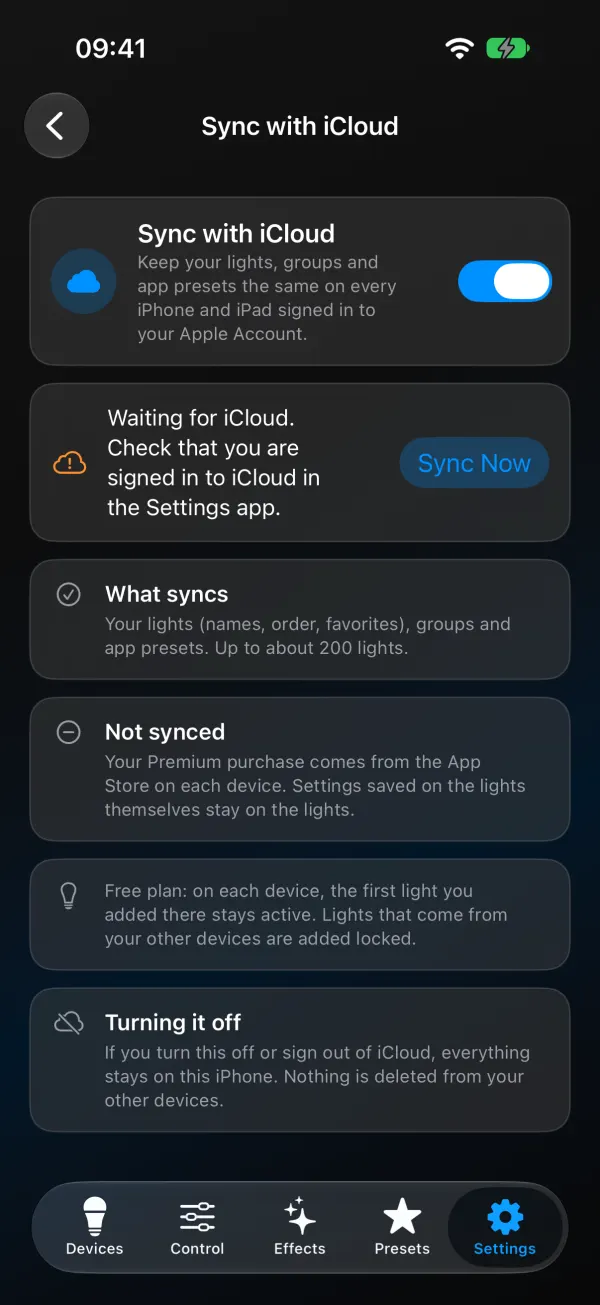
Some details worth knowing:
- On the free plan, the first light you added on each device stays active there. Lights that arrive from your other devices are added locked until you have Premium.
- Turning sync off, or signing out of iCloud, keeps everything on that iPhone or iPad. Nothing gets deleted from your other devices.
- If your app presets are too large to sync, they stay on that device while lights and groups still sync. The Sync with iCloud screen tells you when that happens.
- If another device runs a newer WLED Max, the older one asks you to update WLED Max to keep syncing.
The screen shows “Last synced” with a time. “Waiting for iCloud” usually means you’re not signed in to iCloud in the iOS Settings app. There’s no file export of app data on iOS, so iCloud is the way to move it.
Android: Export App Data and Import App Data
Android
On Android (only), WLED Max has Export App Data and Import App Data in Settings›Backup & Restore, under App Data.
- On the old phone, tap Export App Data. You get a JSON file named like
WLED Max App Data 2026-10-12.json, holding your lights, groups, global presets, favorites, Quick Effect tuning and app settings. - Get the file to the new phone however you like: cloud drive, email to yourself, USB.
- On the new phone, install WLED Max and tap Import App Data. You see a preview, then pick Merge (adds what’s new and leaves everything already on the phone alone) or Replace (uses the backup’s lights, groups, presets, favorites and settings instead).
- New lights show as offline until WLED Max finds them on your network.
The file doesn’t include Wi-Fi passwords, the lights’ own configs (those are on the lights) or your purchase (use Restore Purchases with the same Google account). Android has no automatic cloud sync yet.
The export file is not encrypted, so keep it somewhere private.
Switching from iOS to Android, or back
The lights don’t care which phone you use, so they come along for free. App data doesn’t cross platforms, though. There’s no way to import an iOS sync into Android or the other way, so you’ll set up groups again. Premium is tied to the store too: an App Store purchase doesn’t carry over to the Android app, and vice versa. The free plan and Premium guide has the details. And if you’re switching platforms anyway and want to look at other apps, we wrote up a comparison of WLED apps, including where ours falls short.
If the new phone doesn’t see anything
No lights at all. The phone has to be on the same Wi-Fi as the lights, not a guest network. On iPhone, allow Local Network for the app when it asks (or later in Settings > WLED Max). If discovery still fails, add a light by IP address. More in WLED app can’t find your lights.
Lights show as locked on my iPad. The free plan is per device, so only the first light added on that device is active. Restore Purchases if you bought Premium on the same Apple Account.
Sync says “Not synced yet”. Give it a minute after turning it on, keep the app open, and check that iCloud is signed in.