WLED in Apple Home and HomeKit: The Ways That Work Today
WLED has no built-in HomeKit or Matter. Here is every real way to get WLED lights into the Home app (Home Assistant, Homebridge, Matter bridges) and what each one can and can't do.
JCBy Jamie Conde•
Quick answer: WLED can’t join Apple Home on its own. No WLED release, up to 16.0.1, speaks HomeKit or Matter. To get a WLED light into the Home app you need a bridge running on something that stays on: Home Assistant with HomeKit Bridge, Homebridge with a WLED plugin, or a Matter bridge. If all you want is Siri, the Shortcuts app can talk to WLED directly with no bridge at all.
Whichever bridge you pick, Apple Home only understands a basic light: on and off, brightness, color and, on most bridges, color temperature. Home has no effects control of its own. Most bridges leave effects and palettes out, though one Homebridge plugin can list chosen effects as TV-style inputs. Presets come in as switches, outlets, lights or TV-style inputs, depending on the bridge.
Why WLED isn’t in Apple Home natively
People have asked for it for years. The Matter request on WLED’s GitHub (issue #2871) is still open and marked “help wanted”. The maintainers’ explanation is practical: Matter needs a newer version of Espressif’s framework than any WLED release is built on (the development branch moved to it in July 2026, but no release has it yet), and older chips like the ESP8266 don’t have the memory for it. A proof of concept that added Matter as a usermod on ESP32-S3 was opened in March 2026 and closed without being merged.
So for now, and for every board you already own, a bridge is the way.
What Apple Home can show
In the Home app
Works through a bridge?
On and off
yes
Brightness
yes
Color
yes
Color temperature (warm to cool white)
on most bridges, if the strip has a white channel or WLED reports color temperature
Effects (Fireworks, Twinkle and so on)
not as effects; one Homebridge plugin lists chosen ones as TV-style inputs
Palettes
no
Presets
as switches or outlets, depending on the bridge (see below)
Segments
as separate lights, on some bridges
The practical trick is the same everywhere: build what you want as a WLED preset, then bring that preset into Home as a switch. “Movie” becomes a button in a Home scene or automation.
Pick a route
Route
Runs on
Presets in Home
Segments
Effort
Home Assistant + HomeKit Bridge
your Home Assistant
yes, as a “power strip” with one outlet per preset
yes, one light per segment
low if you already run Home Assistant
Homebridge + WLED plugin
a Raspberry Pi, NAS or always-on computer
yes, as switches, lights or TV inputs (depends on the plugin)
some plugins
medium
Matter bridge
Home Assistant app or Docker
not really, lights only
through Home Assistant
medium
Shortcuts and Siri, no bridge
your iPhone
as shortcuts, not in the Home app
per shortcut
low
If you already run Home Assistant, start there. If you don’t, Homebridge is smaller and does just this one job.
Home Assistant with HomeKit Bridge
This is the most complete route, because Home Assistant already knows a lot about WLED.
Add the WLED integration in Home Assistant. It usually finds your lights on its own (it needs WLED 0.14.0 or newer). Our Home Assistant fixes guide helps if it doesn't.
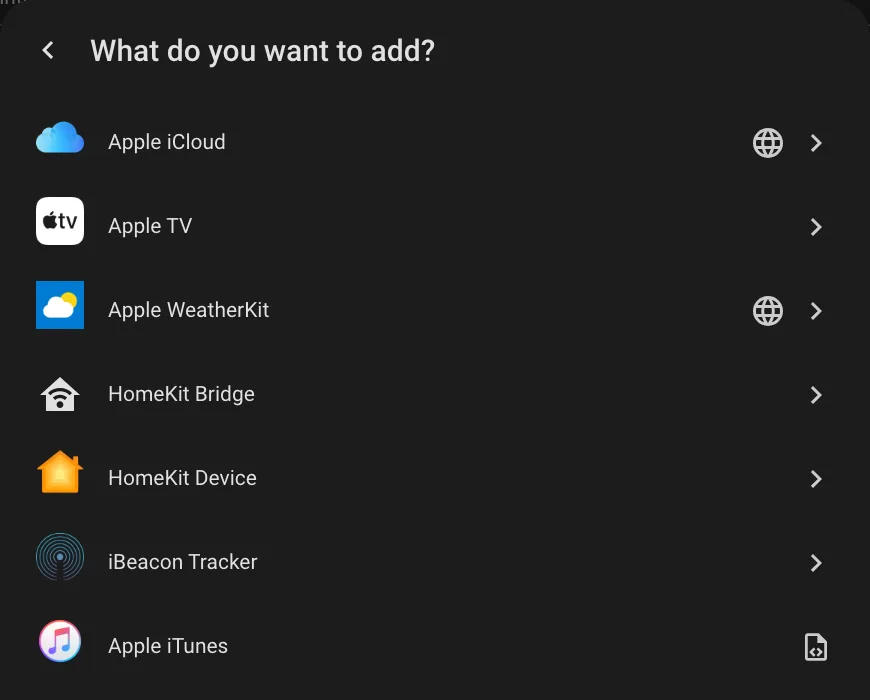
Add the HomeKit Bridge integration: Settings›Devices & services›Add integration, search for HomeKit Bridge. It's listed under Apple.
Home Assistant 2026.10
Pick HomeKit Bridge. HomeKit Device is the opposite direction (HomeKit gadgets into Home Assistant).
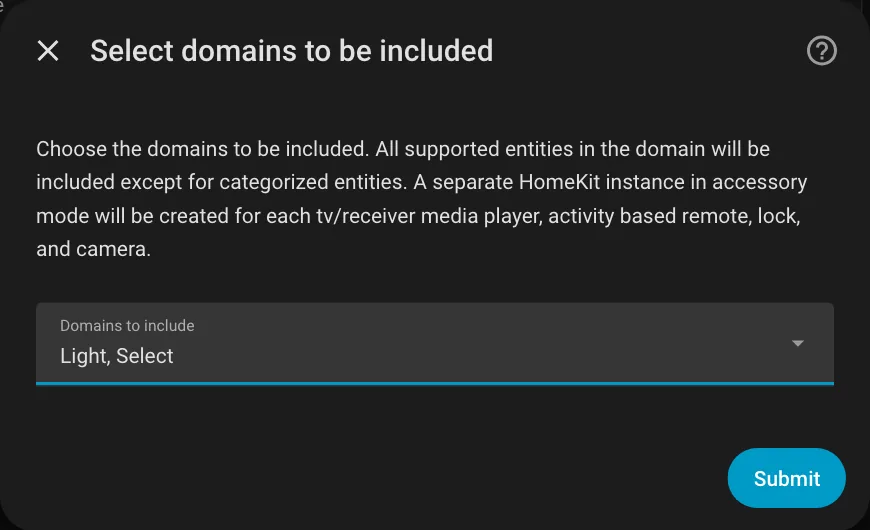
Limit what it shares. In the bridge's options, include the light domain (and select if you want presets), then pick only the WLED entities you want. Otherwise every sensor and switch in your house turns up in the Home app.
Home Assistant 2026.10
During setup, clear the preselected domains and keep Light and Select.Home Assistant 2026.10
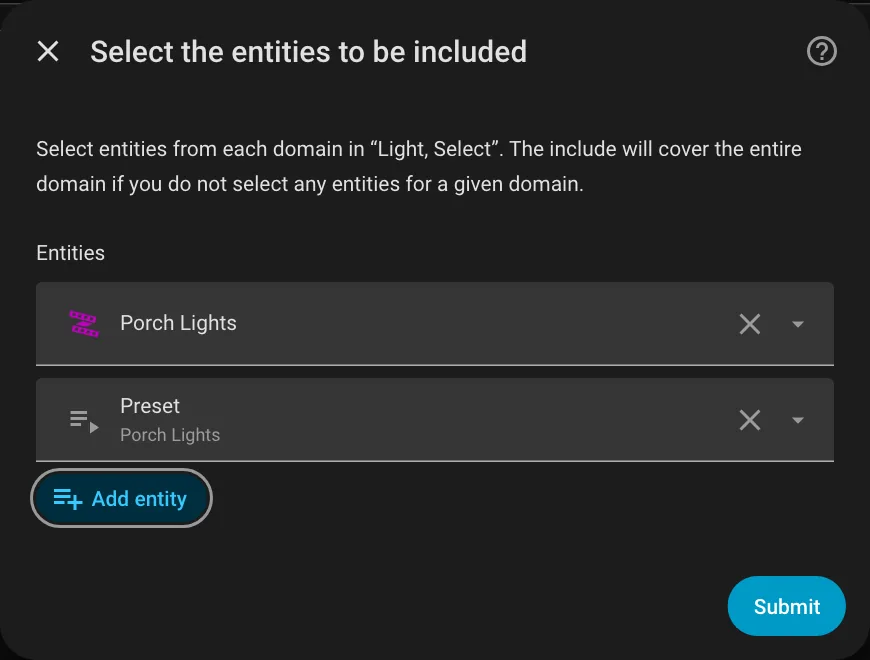
Then open the bridge's Configure, choose include mode and pick the WLED light and its Preset select.
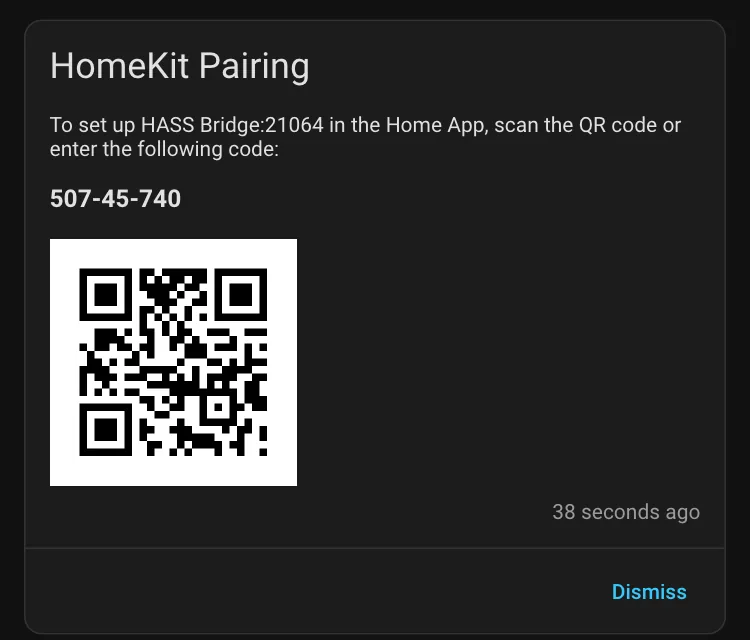
Open the pairing notification in Home Assistant, and in the Home app tap +, Add Accessory and scan the QR code.
Home Assistant 2026.10
The pairing notification, under Notifications in the sidebar. This one came from a throwaway test install, so the code is useless.
What you get in Home:
One light per WLED light, with color. If the light has more than one segment, Home Assistant creates a Main light (power and overall brightness only, no color) plus one light per segment. Share the Main light for on, off and dimming, and the first segment’s light if you want to set colors from the Home app.
Color and brightness, and color temperature when the light supports it.
Presets and playlists come over as select entities, which HomeKit Bridge shows as a power strip with one outlet per option. Share the preset select and you can tap “Christmas” in the Home app, or use it in a scene.
Tip
A HomeKit bridge holds at most 150 accessories. With many WLED lights, segments and selects, a second bridge instance just for lights keeps things tidy.
Homebridge with a WLED plugin
Homebridge is a small server whose job is bringing non-HomeKit devices into Apple Home. It runs on a Raspberry Pi, a NAS or any always-on computer.
Install Homebridge with its web interface (the Homebridge site has images and installers).
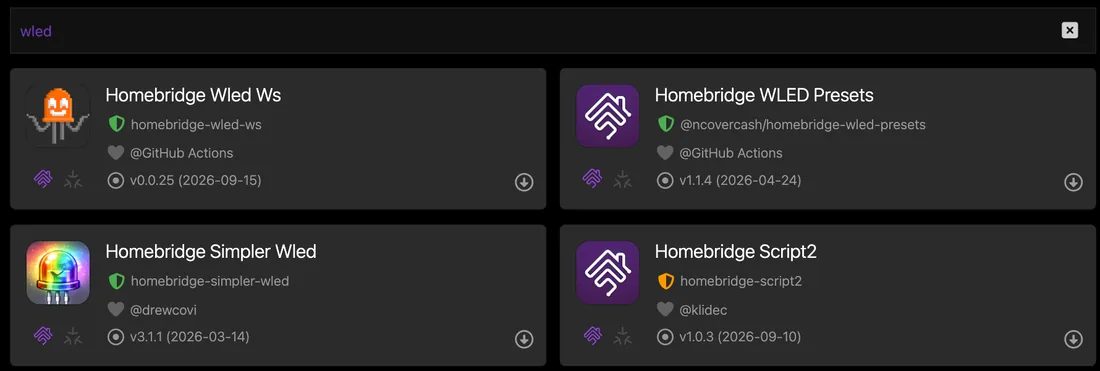
In the Plugins tab, search for WLED and install one of the plugins below.
Homebridge UI 5.29
The green shield marks a verified plugin. The download arrow lets you pick a version to install.
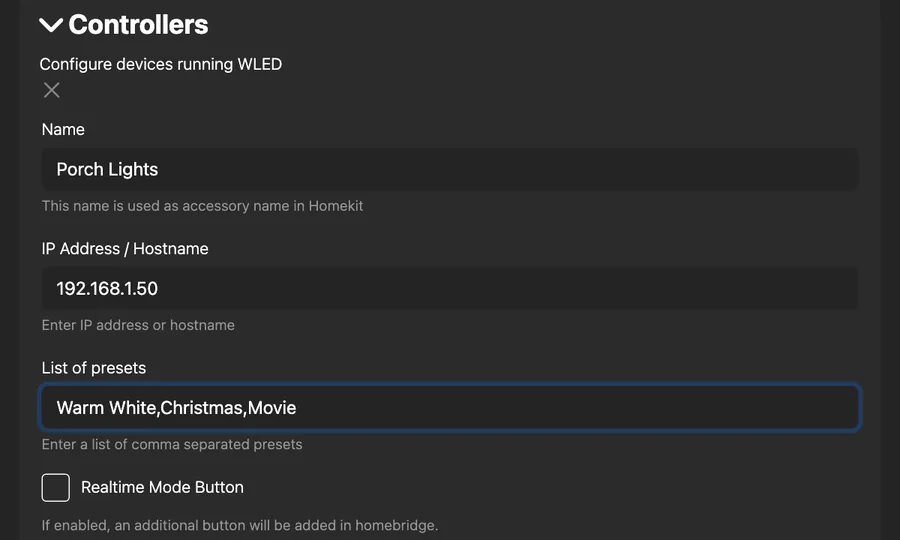
Enter your lights' IP addresses in the plugin settings (give them DHCP reservations in your router first, so they don't move).
homebridge-wled-ws 0.0.25
homebridge-wled-ws opens this form right after the install. Presets are listed by name, separated by commas.
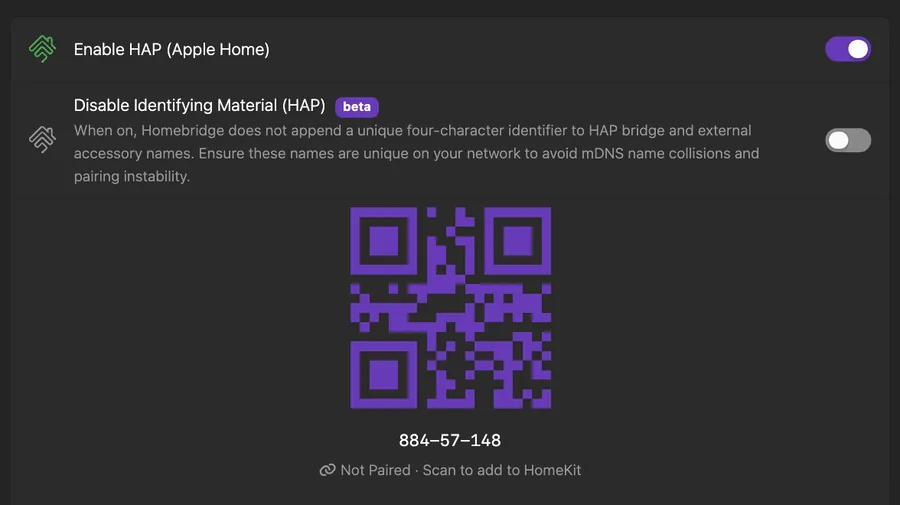
In the Home app, add the accessory by scanning the QR code on the Homebridge dashboard. If you kept the child bridge that Homebridge offers when you first save a plugin's settings (it's switched on by default), that plugin gets its own QR code: tap the QR icon (Connect to HomeKit) on the plugin's card.
Homebridge UI 5.29
The child bridge's own pairing code. A child bridge has to be added to Home separately from the main bridge.
Homebridge UI 5.29
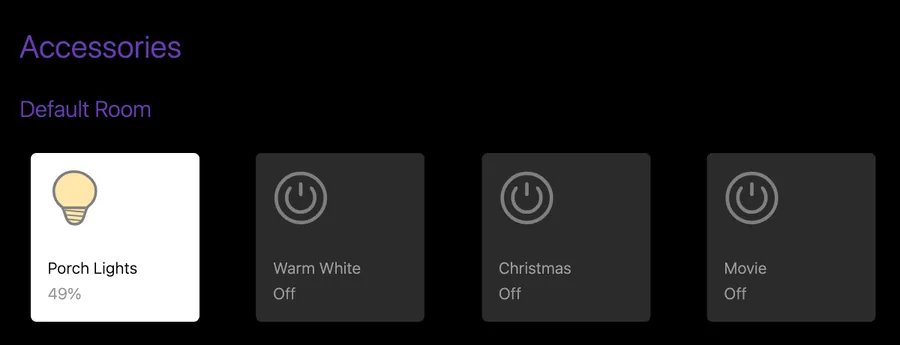
What homebridge-wled-ws hands to Apple Home: one light plus one switch per preset you listed.
As of October 2026 these are the plugins worth looking at. Homebridge’s “Verified” label means the Homebridge team checked the plugin against its guidelines.
Plugin
Verified
What it gives you
homebridge-wled-ws
yes
A light with power, brightness and color; one switch per preset you list; an optional switch for realtime mode. Controls only the main segment
homebridge-simpler-wled
yes
Power, brightness and color; presets as a TV-style input list; optional accessories per segment
@ncovercash/homebridge-wled-presets
yes
Presets only: each preset is its own light with on, off and brightness, and turning one on turns the others off. No color control. Version 1.1.4, last updated April 2026
homebridge-simple-wled
no
Power, brightness and color; chosen effects or presets as a TV-style input list (one or the other, not both)
homebridge-wled-ws lists the WLED versions it’s tested with (up to 0.15.4 in October 2026, nothing for 16 yet); the others give a minimum version at most. Check before updating your lights to a new major version.
Matter bridges
Matter is the newer smart home standard, and Apple Home supports Matter lights. A Matter bridge takes lights it already knows and offers them as Matter devices. For WLED that currently means one of these:
Home Assistant Matter Hub, as a Home Assistant app (formerly called an add-on). The original project stopped being maintained in January 2026 and is now archived; the community fork by RiDDiX is the one still maintained.
Matterbridge with its matterbridge-hass plugin, also on top of Home Assistant.
wled-matter-bridge, a small standalone project on GitHub that finds WLED lights on your network and offers them over Matter without Home Assistant. It runs in Docker.
All three give Apple Home a light with on, off, brightness and color. None of them carries effects or palettes. Two of them note an Apple quirk: the Home app keeps the name a device had when it was paired, so renaming the light later doesn’t carry over.
Matter makes the most sense if you also use Google Home or Alexa, since one bridge serves all of them. For Apple Home alone, HomeKit Bridge or Homebridge do the same job with fewer moving parts.
No bridge: Siri and Shortcuts
If you just want to say “Hey Siri, movie lights”, skip the bridge. The Shortcuts app can send commands straight to the light’s JSON API with Get Contents of URL, for example {"ps":5} to load preset 5. Our Shortcuts and Siri guide has the steps and a table of commands.
The catch: shortcuts aren’t Home accessories. They don’t show up in the Home app, in Home scenes or in Control Center’s Home controls, and they only reach the lights while your iPhone is on the same network.
Our app, WLED Max, sits on this side too. On iOS it adds Siri phrases and Shortcuts actions (turn on or off, brightness, color, preset, effect) without any URL typing, but it doesn’t put lights into the Home app.
A home hub for automations
Apple Home needs a home hub (an Apple TV or a HomePod) to run automations and to control accessories when you’re away. Without one, a bridged WLED light works from your phone at home, but “turn on the porch lights at sunset” won’t run. WLED’s own timers don’t need any of this: see sunrise and sunset schedules.
Common problems
The light shows “No Response” in Home. The bridge can’t reach the light. Usually the light got a new IP address after a router restart. Give it a DHCP reservation and update the bridge.
Too many accessories. HomeKit Bridge shares everything you include. Narrow it to the WLED light entities and one preset select per light.
A renamed light keeps its old name in Home. Rename it in the Home app too. Bridges set the name at pairing time.
FAQ
Does WLED support HomeKit? Not natively. You need a bridge such as Home Assistant’s HomeKit Bridge or Homebridge.
Does WLED support Matter? Not in any release up to 16.0.1. The feature request is open, and Matter bridges cover the gap.
Can I pick WLED effects from the Home app? Not as effects. Save the effect as a WLED preset and expose the preset as a switch or outlet, or use homebridge-simple-wled, which can list chosen effects as TV-style inputs.
What’s the easiest way if I don’t run Home Assistant? Homebridge on a Raspberry Pi with homebridge-wled-ws or homebridge-simpler-wled.