Make a Custom WLED Palette from a Photo
How WLED custom palettes work (palette0 to palette9.json, WLED 0.14+), how to build one by hand, and how to make one from a photo.
A WLED custom palette is a tiny text file, usually under 100 bytes. Since WLED 0.14 you can put up to ten of them on a light (palette0.json to palette9.json), and the web UI has an editor for them. So turning a photo into a palette comes down to picking a few colors from the picture and typing them in as stops. Here’s how, by hand first, then with Snap a Palette, which is new in WLED Max 1.1.4.
Quick background: many WLED effects don’t use your three color slots. They draw from a palette, a gradient of colors that the effect walks along. Change the palette and the same effect (Colorwaves, Pacifica, Running, Twinkle and many more) takes on a whole new mood. WLED ships with around 70 palettes, from Party and Ocean to Sunset and Forest. A custom palette lets you add your own, like the colors of your living room, a team jersey or a sunset you photographed.
How custom palettes are stored
A custom palette is a JSON file in the light’s file system:
{"palette":[0,255,120,0, 128,200,0,90, 255,255,120,0]}Each group of four numbers is one stop: position (0 to 255 along the gradient), then red, green, blue. A hex form is also accepted: [0,"ff7800",128,"c8005a",255,"ff7800"]. A few practical rules:
The example above: orange at 0, magenta at 128, orange again at 255.
- Files are
palette0.jsontopalette9.json. On WLED 0.14 and 0.15, the light loads them in order and stops at the first missing number, so don’t leave gaps. WLED 16 is more forgiving about gaps. - About 10 custom palettes per light is the practical limit. It’s a hard limit on 0.14 and 0.15 (and on ESP8266). WLED 16 on an ESP32 accepts more, but its palette editor warns about stability past 10.
- Repeat the first color at position 255 if you want effects that loop through the palette to wrap around smoothly instead of showing a hard edge.
- Two stops at the same position make a hard edge, which is how you get stripes instead of a blend.
By hand in the web UI (WLED 0.14 or newer)
- Open the light in a browser and go to the Palettes panel.
- On WLED 0.14 or newer, use the + (add custom palette) button to open the palette editor.
- Click on the gradient bar to add stops and pick a color for each. Drag stops to move them.
- Click the save arrow next to a free slot. The new palette appears in the palette list and can be used with any palette based effect.
To use a photo, open it in any image editor or an online color picker, pick 3 to 6 colors you like (one dark, one bright and a couple in between tends to work), and copy their hex values into the stops. Alternatively, write the JSON file yourself and upload it through the light’s file editor at http://<light-ip>/edit, then reboot.
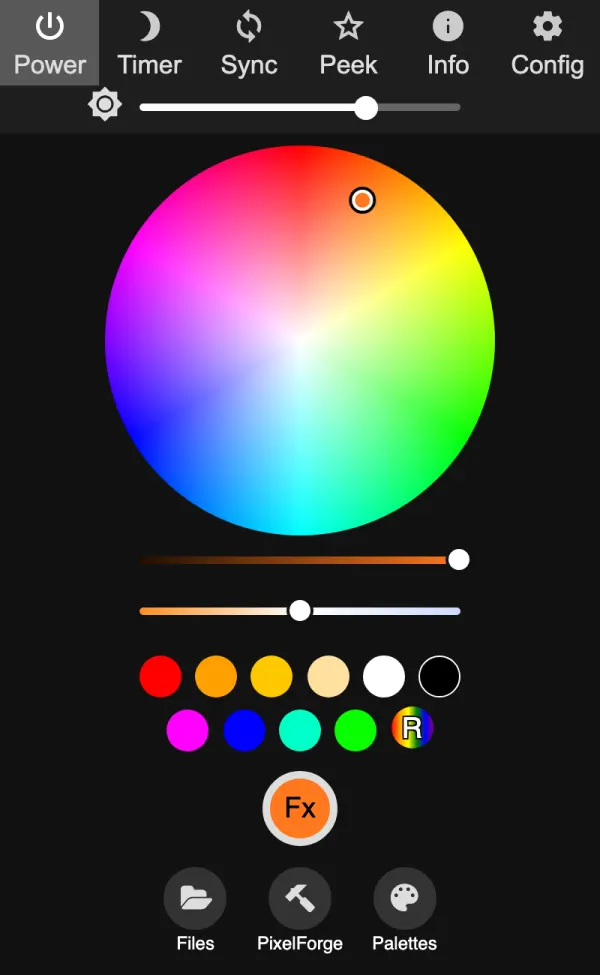
It works. It’s slow, though, and you only see the result after saving.
From a photo with Snap a Palette
In WLED Max, go to Effects›Palettes and tap Snap a Palette (“Turn a photo into colors for your lights”). The same button is also on the Control tab. It works the same on iOS and Android.
New in 1.1.4
-
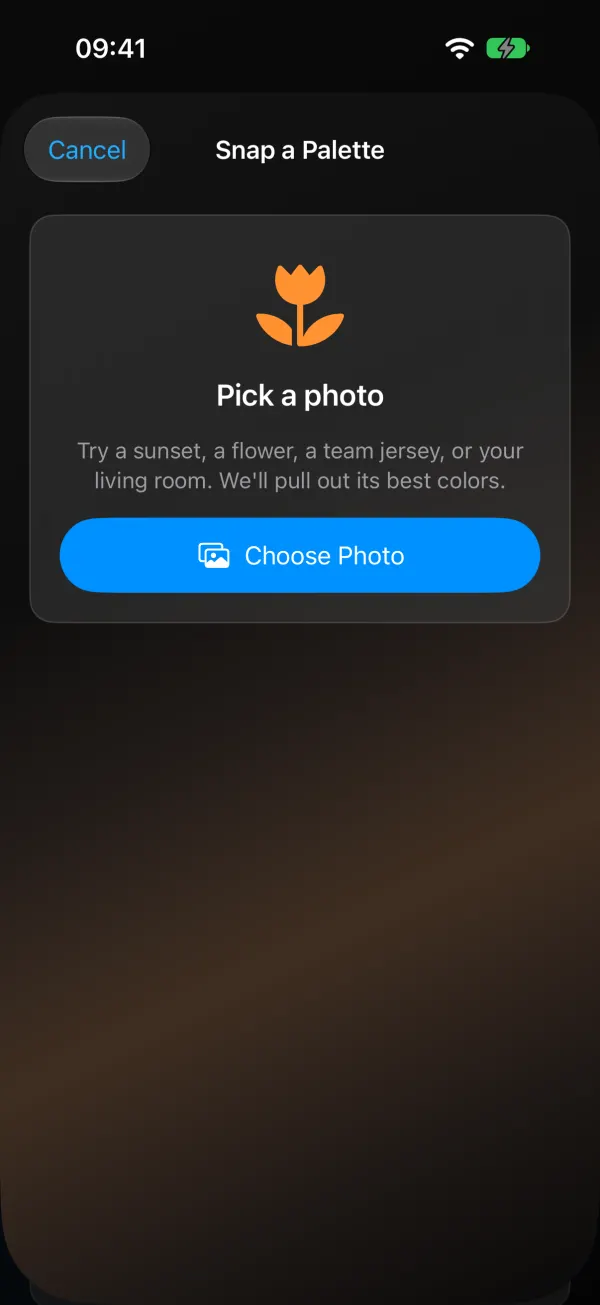
Choose Photo or Take Photo. Sunsets, flowers, team jerseys and rooms work well.
-
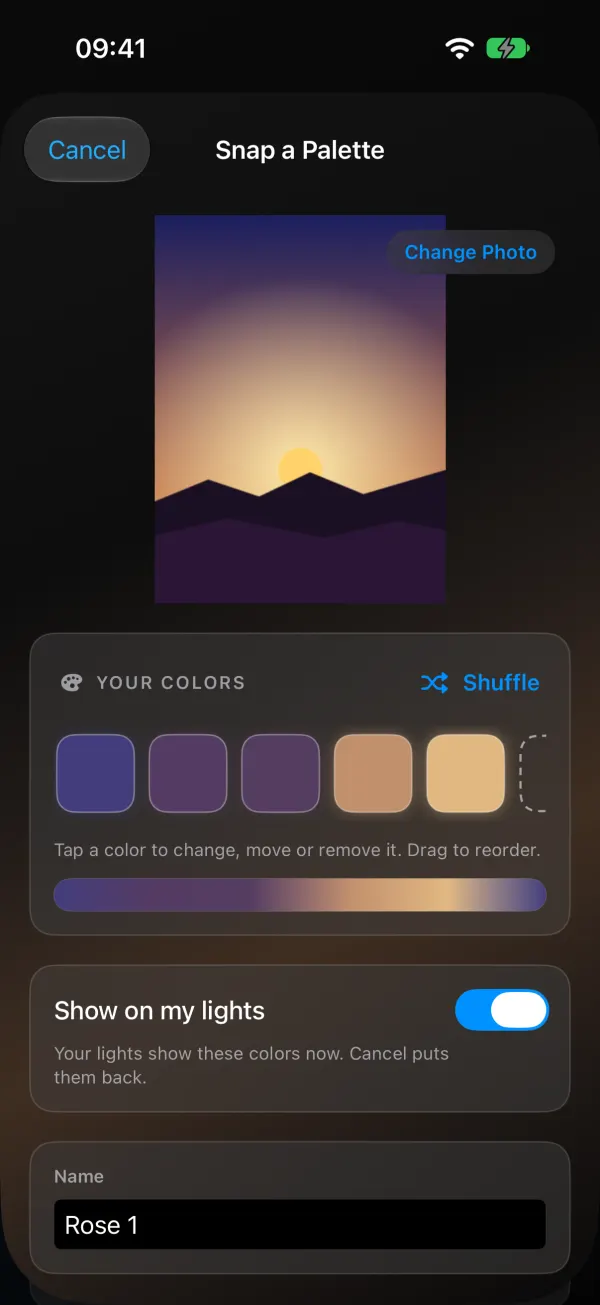
The app picks the main colors, 5 by default (you can have 2 to 8).
Adjust: Shuffle for another pick from the same photo, add a color, tap a color to change, move or remove it, drag to reorder. The app suggests a name.
Show on my lights previews the colors live on the light while you edit. It works even when the light is off. Cancel puts the light back exactly as it was.
-
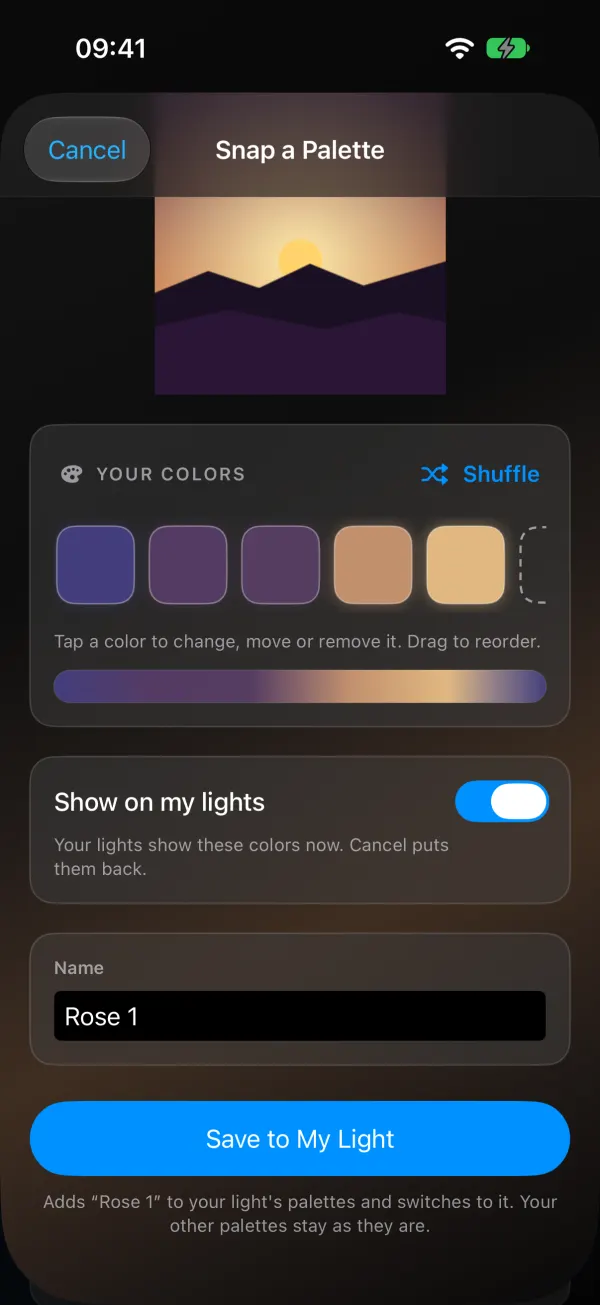
Save to My Light (or Save to N Lights for a group) saves the palette as a custom palette and switches the light to it. "Your other palettes stay as they are."
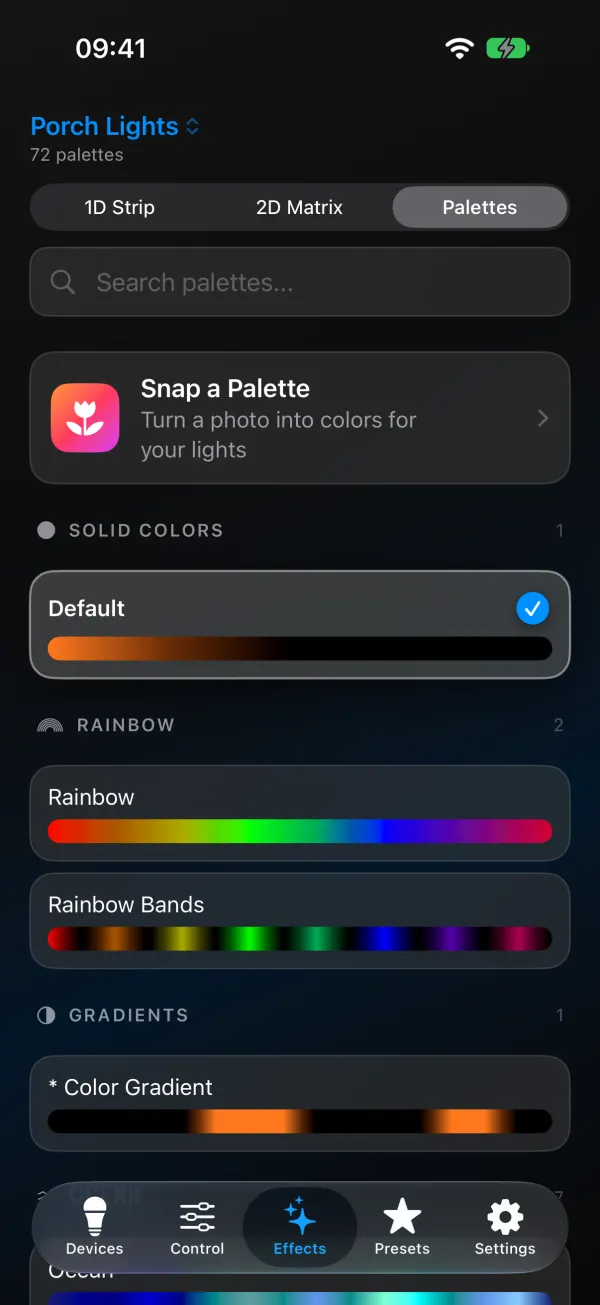
Saved palettes show up under My Palettes in the Palettes tab. Long-press one you made in the app to delete it. If the light already has 10 or more custom palettes, the app shows the list (“Palette list is full”) and lets you pick one to replace. In a group, the palette is added to every light in it, and if some lights don’t have it yet when you pick it later, the app offers to add it there too (“Add to the other lights?”).
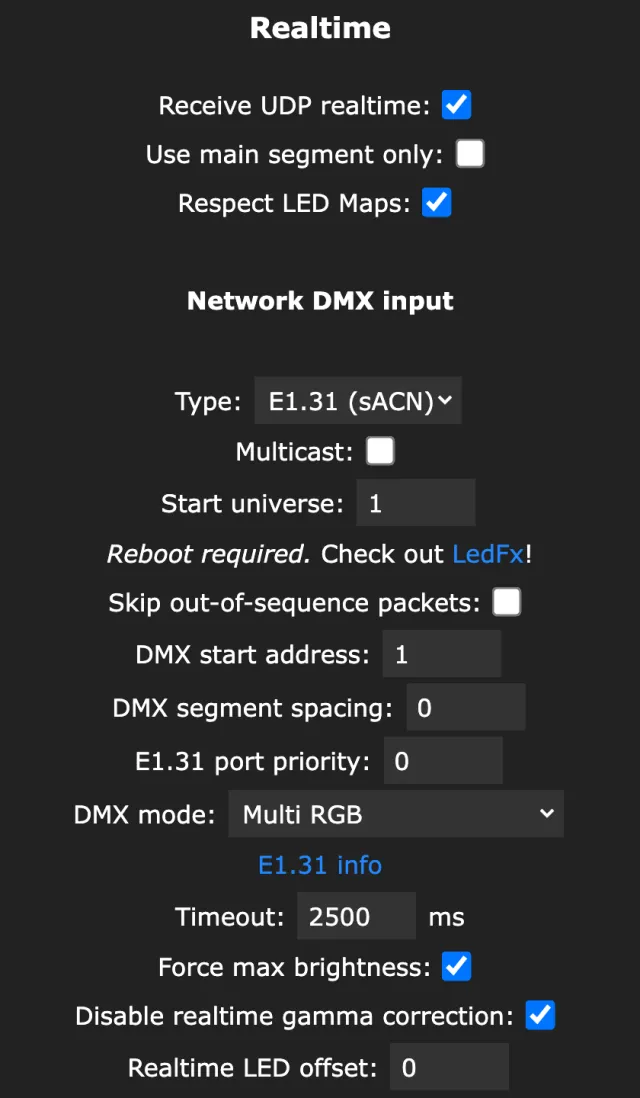
You need WLED 0.14 or newer to save (older lights get “This light needs a newer WLED version to save palettes.”), and the app keeps at most 10 custom palettes per light. For the live preview, Receive UDP realtime has to be on in the light’s settings. That switch is in the WLED web UI under Config > Sync Interfaces, Realtime section. Saving works without it.
If the palette won’t save, or the preview stays dark
The preview doesn’t show on the light. Receive UDP realtime is off (the app says live control is turned off in the light’s WLED settings), or the phone and light are on different networks. Turn it on in the WLED web UI under Config > Sync Interfaces.
Only part of the light shows the preview. The light has Use main segment only set for realtime data, so live colors go to the main segment. The app tells you (“Only the main part of … shows the preview”). Saving still works for the parts you picked.
“This light is locked with a PIN.” The light has a settings PIN. Enter the PIN in the WLED settings page and try again.
“Can’t delete this one yet.” On older firmware, WLED can only remove the newest custom palette. Update WLED, or remove the file on the light’s web page.
The photo gives one color only. “This photo has only one main color.” Pick a photo with more colors, or add colors with +.
The effect still looks the same after switching palettes. That effect doesn’t use palettes. Solid, for example, uses only the primary color. Pick a palette based effect like Colorwaves or Palette. The WLED effects list with live previews guide explains which controls an effect uses.
Palettes and color slots get mixed up a lot. If you’re not sure which one an effect is using, WLED colors and the white channel sorts that out.